
Nozbe Views
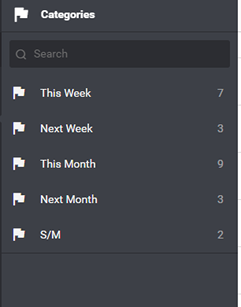
Nozbe heavily uses contexts for different TRO views.
To make Nozbe work with TRO, these steps should be done.
- Remove all Categories created by Nozbe
- Click
 (left pane).
 - Click
 (left pane, bottom).
 - Select categories by clicking the corresponding
 (besides each category).
 - Click
 (left pane, bottom).
 - Click Delete (pop-up)
- Click
 (left pane, top)
- Click
- Add soft dates to your Categories list.
- Click (left pane).
- Click
 (left pane, bottom).
 - Populate
 with the words This Week.
 - Press Enter.
- Click (left pane, bottom).
- Populate with the words Next Week.
- Press Enter.
- Click (left pane, bottom).
- Populate with the words This Month.
- Press Enter.
- Click (left pane, bottom).
- Populate with the words Next Month.
- Press Enter.
- Click (left pane, bottom).
- Populate with the words S/M (Someday/Maybe).
- Press Enter.
- Click
- Re-arrange your Soft Dates.
- Click (left pane, bottom).
- Move a soft date by clicking and dragging the
 up or down (besides category name).
 - When finished, click .
- Click
Set up and/or learn custom views required for your task list (if applicable):
- Learn how to use task views.
- Decide what the task fields mean.
- Decide how to view all tasks for all contexts.
- Set up your hotlist.
- Set up your Do Today list.
- Set up your Someday/Maybe list.
- Set up your Weekly Review list.
- Set up your Unprocessed Tasks list.
Recent Comments